
Step 1: Access the Audience Builder
- Click the “Audiences” button located in the left-hand navigation menu.
- To edit an existing segment: Click the square + button next to the audience you wish to modify, then proceed to the steps below.
- To create a new audience: Click the magenta “+ for HCP Audiences” button
- Note: You will have the option of creating a new audience from scratch, starting from a duplicate of an older audience segment, or .csv upload
- Select “Build New Audience”
- Name your audience
Step 2: Build Audience Criteria
- To start building your audience, drag and drop the orange “Criteria” buttons from the left side of the screen into the audience builder canvas.
- Note: You may click the blue “Refresh” button at the top of the module at any time to see the updated estimated audience count based on your current configuration.
Step 3: Configure Logic Operators
Use the logic toggles to define how your selected criteria interact.
- Any of: Select this to include records that meet at least one of the conditions selected (also known as “OR logic”).
- All of: Select this to include records that meet every condition selected (also known as “AND logic”).
- Example of Logic Operators: Assume your criteria are “Profession = Physician” and “Prescription = Azithromycin.”
- Using “Any of”: The audience will include anyone in the database who is a Physician OR anyone who has prescribed Azithromycin (regardless of profession).
- Using “All of”: The audience will include only Physicians who have also prescribed Azithromycin. Physicians who have not prescribed it, or non-physicians who have prescribed it, will be excluded.
Step 4: Create Complex Groupings (optional)
- For advanced targeting, use the “Include a Group” or “Exclude a Group” buttons in conjunction with “All of” and “Any of” conditions.
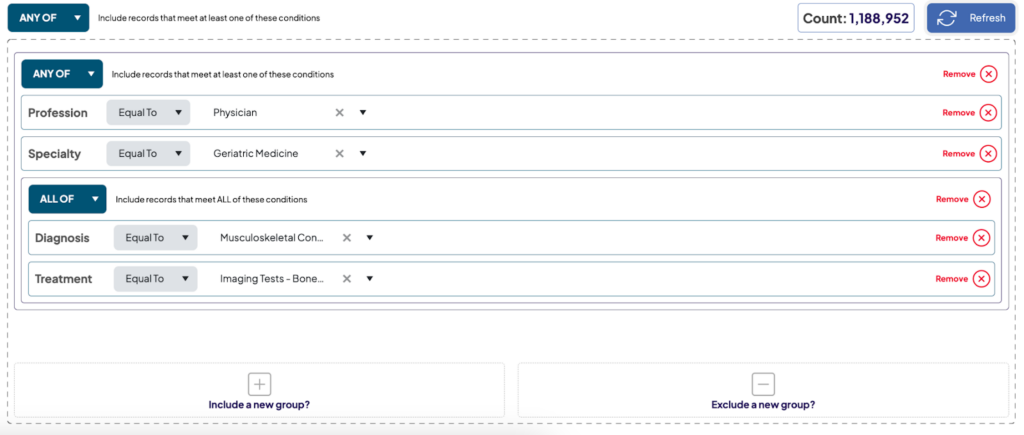
Note: You can nest logic to create specific user subsets. - Example Scenario: The query below creates a segment of 1,188,952 records targeting individuals who are EITHER:
- A Physician OR have a specialty in Geriatric Medicine. OR
- Have diagnosed Osteoarthritis AND have prescribed a Bone Density imaging test.
Step 5: Save Audience
- Once you are satisfied with your audience configuration, name, and estimated count, click “Save Audience” to finalize the process.