Retargeting Audiences and Pixels 

Step 1: Access the Retargeting Menu

  1. Edit an existing campaign, or begin the “Creating a New Campaign” process. Expand the “Audiences” drawer and select the blue “Click here for Retargeting Audiences” button.
  2. If you have an existing retargeting audience used on a previously created line itemLine Item The foundational execution tier within a campaign hierarchy where specific targeting tactics, pacing, and optimization settings are defined. Operating beneath the campaign level, line items provide the granular control necessary to execute audience-specific strategies and achieve targeted KPIs.: Select your audience from the dropdown menu labeled “Choose from an existing retargeting audience,” then continue with the standard line item setup.
  3. If you need to create a new audience or pixel: Continue to Step 2 below.

Step 2: Configure the Retargeting Pixel

  1. On the “Assign Retargeting Audiences” slide-out panel, click the “Create a new retargeting audience” menu item, then choose one of the following options:

Option A: Use an Existing Pixel

  • Select the “Select from existing Pixels” menu option.
  • Click the + button next to the desired pixel.
  • Proceed immediately to Step 3: Define the Retargeting Audience.

Option B: Create a New Pixel

  • Select the “Create a new Pixel” menu option.
  • Fill out all required fields on the “Create a Pixel” slide-out.
  • Click the green “Get Pixel” button to generate the pixel and automatically proceed to Step 3: Define the Retargeting Audience

Step 3: Define the Retargeting Audience

  1. Complete all fields in the “Create a Retargeting Audience” module.
    • Verification: Before saving, check the bottom of the module for the confirmation text: “Creating a retargeting audience based off of Pixel: [Pixel Name].” Once all details are entered and verified, click the blue “Save” button located at the bottom right of the module.

Step 4: Resume Line Item Setup

  1. Upon saving, you will be automatically returned to the “Line Items” screen. You may now save your editing existing line item, or continue with the rest of the new campaign setup.

Creating/Editing HCP Audiences

Step 1: Access the Audience Builder

  • Click the “Audiences” button located in the left-hand navigation menu.
    1. To edit an existing segment: Click the square + button next to the audience you wish to modify, then proceed to the steps below.
  • To create a new audience: Click the magenta “+ for HCP Audiences” button
    1. Note: You will have the option of creating a new audience from scratch, starting from a duplicate of an older audience segment, or .csv upload
  • Select “Build New Audience”
  • Name your audience

Step 2: Build Audience Criteria

  • To start building your audience, drag and drop the orange “Criteria” buttons from the left side of the screen into the audience builder canvas.
    1. Note: You may click the blue “Refresh” button at the top of the module at any time to see the updated estimated audience count based on your current configuration.

Step 3: Configure Logic Operators

Use the logic toggles to define how your selected criteria interact.

  • Any of: Select this to include records that meet at least one of the conditions selected (also known as “OR logic”).
  • All of: Select this to include records that meet every condition selected (also known as “AND logic”).
  • Example of Logic Operators: Assume your criteria are “Profession = Physician” and “Prescription = Azithromycin.”
    1. Using “Any of”: The audience will include anyone in the database who is a Physician OR anyone who has prescribed Azithromycin (regardless of profession).
    2. Using “All of”: The audience will include only Physicians who have also prescribed Azithromycin. Physicians who have not prescribed it, or non-physicians who have prescribed it, will be excluded.

Step 4: Create Complex Groupings (optional)

  • For advanced targeting, use the “Include a Group” or “Exclude a Group” buttons in conjunction with “All of” and “Any of” conditions.
    Note: You can nest logic to create specific user subsets.
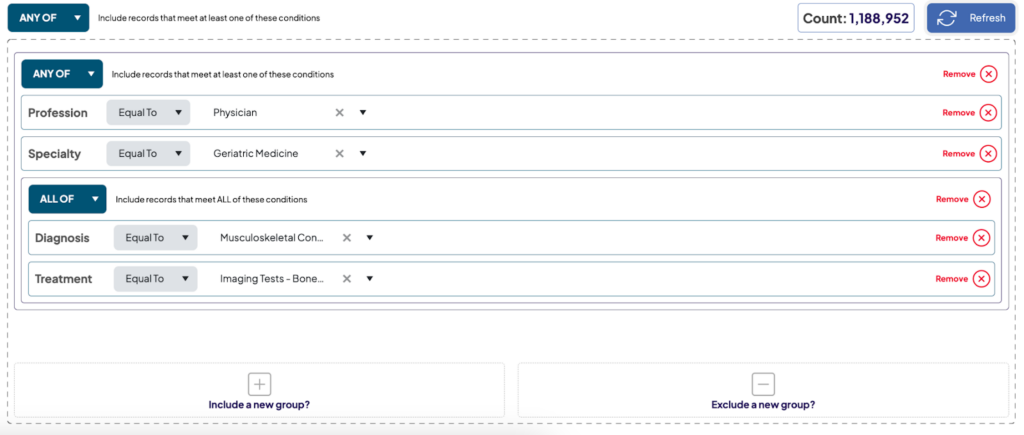
  • Example Scenario: The query below creates a segment of 1,188,952 records targeting individuals who are EITHER:
    1. A Physician OR have a specialty in Geriatric Medicine. OR
    2. Have diagnosed Osteoarthritis AND have prescribed a Bone Density imaging test.

Step 5: Save Audience

  • Once you are satisfied with your audience configuration, name, and estimated count, click “Save Audience” to finalize the process.

Uploading an HCP Audience Target List

Step 1: Access the Audience Builder in Left-hand Navigation

  1. Click the “Audiences” button located in the left-hand navigation menu
  2. Click the magenta “+ for HCP Audiences” button
    1. Note: You will have the option of creating a new audience from scratch, editing a previously existing audience segment, or .csv upload
  3. Select “Upload Target List (.csv),” or drag and drop your target list into the upload zone (outlined in yellow below).
  4. Click either “Download HCP Match List” or “Use target list in a new audience.”
    1. If downloading an HCP match list, the file will automatically start downloading to your device.
    2. If using the target list in a new audience, continue to the steps below.
  5. After clicking “Use target list in a new audience,” you will be guided to the audience builder tool. To use the target list you just uploaded, drag and drop the orange “target lists” chip into the audience builder. Then, find your uploaded list’s file name using the drop-down menu or typeahead search.
  6. You can then name and save your audience segment using the fields, or you can add additional targeting parameters following the “Creating/Editing HCP Audiences” guide, starting at “Step 2: Build Audience Criteria.”

Creating a New Campaign

Step 1: Create a new campaign

  • To begin, click the “+ New Campaign” button located at the top of the left-hand navigation menu.

Step 2: Configure Campaign 

  • Complete all fields on the “Campaign” screen.
    1. Required Fields include: Campaign NameCampaign Name The user-defined label for the overall marketing initiative., Start and End DateEnd Date The date the campaign or line item is set to end., Total BudgetTotal Budget The absolute monetary cap allocated for the campaign's entire lifecycle. This figure represents the maximum amount the DSP is authorized to spend across all associated line items within that campaign combined., Impression Cap/GoalImpression Cap/Goal The maximum amount of impressions you would like your campaign to hit., PacingPacing The rate at which the DSP delivers impressions or spends budget over the duration of a campaign's flight. Proper pacing ensures a campaign remains active throughout its scheduled timeframe rather than exhausting resources too early.  , and Pacing MultiplierPacing multiplier A mathematical modifier used to accelerate budget consumption early in a campaign or line item's flight. It dynamically recalculates the daily spend target by multiplying the standard even-pacing formula by this factor to effectively front-load delivery..
  • Once all required information is entered, click the “Complete Step” button to proceed to the Line Items screen
    Tip:To save your progress and automatically advance to the next step, always click the Complete Step button. While you can manually navigate to the next screens (Campaign, Line Items, or Review & Launch) by clicking the buttons at the top of the fields, your progress will not be saved if you leave the campaign wizard, navigate away from HayloARC, or if your computer loses power.

Step 3: Define Line Items

  • On the Line ItemLine Item The foundational execution tier within a campaign hierarchy where specific targeting tactics, pacing, and optimization settings are defined. Operating beneath the campaign level, line items provide the granular control necessary to execute audience-specific strategies and achieve targeted KPIs. screen, click “Add Line Item” to define a new one.
  • To configure a line item, click the main header titles (e.g., Basic Setup, Budgeting and Goals, Creatives) to expand the configuration drawers and fill in all relevant details.
    1. Required fields include but are not limited to: Media TypeMedia Type The fundamental classification of the creative asset being served by the line item (e.g., Display, Video, Audio). , Pacing, Daily Caps, Bid LimitBid Limit The maximum value allowed for any bid price for your line item.  , Maximum Average BidMaximum Average Bid The target value for the average of all bid prices for this line item., Primary Goals, CPC, and Inventory Sources.
    2. Note on Dynamic Options: Some campaign settings are dynamic and will only appear based on the features you select. For instance, the “Audio” media type permits only a “Flat” bidding method, while the “Display” media type allows you to choose between “Flat” and “Automated” bidding methods.
    3. For instructions on the options and experiences in the “Audiences” drawer, visit the “Uploading an HCP AudienceHCP Audience Targeting segments comprised specifically of verified Healthcare Professionals, such as physicians or nurses. These segments are built using deterministic NPI data to ensure ads are served only to specialists relevant to your therapeutic area. Target List” guide, “Creating/Editing HCP Audiences” guide, “Selecting a DTC AudienceDTC Audience Direct-to-Consumer audiences consisting of patients or caregivers. These segments are built using privacy-compliant, probabilistic data modeling to reach users likely interested in or affected by specific medical conditions.” guide, or “Creating a Retargeted Audience” guide

Step 4: Review and Launch

  1. Click the “Complete Step” button to move on to the “Review & Launch” screen.
  2. Carefully review all campaign setup details to ensure accuracy. Confirm that all required fields flagged by the DSP are complete.
    1. Click the ^ or ⌄ arrow next to each line item to expand and review the details of that exact line item
  3. If you are not ready to launch: Go back to the “line items” screen and click “Save Progress.” You can return to your draft later by clicking the CampaignsCampaigns The name or unique identifier assigned to the campaign. button in the left-hand navigation and locating your saved campaign draft.
  4. When ready to activate: Click “LAUNCH ALL” to initiate all line items within the campaign.
    1. Note: if there are any errors during setup, the DSP will not allow you to launch. You will see an “error” flag next to any line items that need further review.

Important Note on Completion

You are able to navigate through the setup screens (Basics & BudgetBudget Provides the total spend ceiling as provided by you to the DSP campaign data  — essential to understand pacing and prevent overdelivery., Line Items, Review & Launch) without completing every field. However, the platform will not permit you to launch the campaign until at least all required fields throughout the entire setup process have been filled out.

Duplicating an Existing Campaign

  1. If you have an existing campaign you would like to duplicate, select CampaignsCampaigns The name or unique identifier assigned to the campaign. in the left-hand navigation.
  2. Select the “copy campaign” icon next to the campaign you wish to duplicate.

Continue the campaign configuration following the steps in the “Creating a New Campaign” guide below, starting at “Step 2: Configure Campaign.”

Setting Up User Roles

Important Note on Permissions: Access to the “Users” page is dependent on your specific administration access level. If you do not see the navigation option described below, you may not have the required permissions to manage users.

Step 1: Access User Management

Click the “Users” button in the left-hand navigation menu.

  1. To manage existing users: Click the icons next to a specific user’s name to edit their details or delete their access.
  2. To create a new user: Click the blue “New User +” button located above the user table.

Step 2: Configure User Details

  1. Fill out all required fields in the user profile form.

    Role Assignment: You must assign a role of either Client Admin or Client User.

Step 3: Define Access Scope

Select the Scope for the new user to determine which accounts they can access within the agency portfolio.

  1. Options: You may grant access to specific clients or all clients.
  2. Multi-Select: Multiple selections may be made for users who require access to several specific accounts.

Step 4: Save Changes

Once all details and scopes are defined, click the blue “Save Changes” button to finalize the user setup.